“Where did I put the charger?”
I liked the idea of searching for an item by name and seeing its location in a photo, instead of opening every drawer. So this time, I made an item-location map.
Like the café training game in my first post, it runs as a single HTML file. This time, I asked for a tool I could fill with my own photos and item names.
It started with finding a location. Then it gained a character and a finding game. Quite a lot of work just to locate a charger.
Starting with one photo
My first request was:
Make an item-location map as a single HTML file. I want to add a photo of a cabinet, mark where things are, and search for them by name.
That was the whole first request: add a cabinet photo, label where things are, and search for them later. I described what I wanted to do on screen, without specifying how to build it.
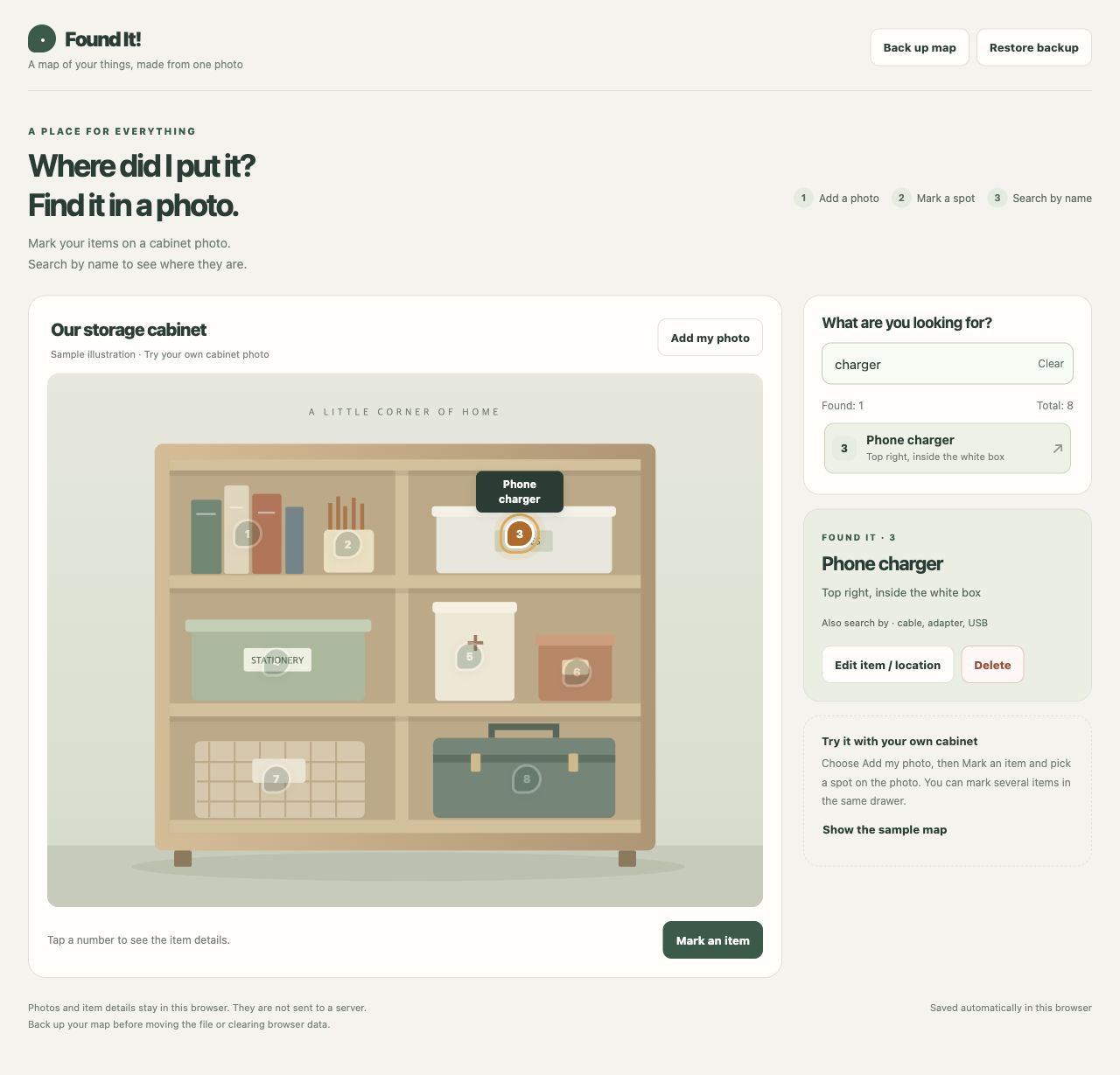
The first version, translated into English and recaptured. Searching for “charger” highlights its saved location. The cabinet is a sample illustration, not a photo of my home.
The result let me add a photo and label the spots where things were stored. I could also save other search terms, so “cable” or “USB” would find the phone charger.
Adding a character and more rooms
The first screen had a quiet color palette. It did the job, but I wanted to have a bit more fun with the look: stronger colors and a character. I also thought children might use it as a game.
I wanted to cover more than one cabinet, too. Things are stored all over a home. Here’s a shorter version of what I asked next:
I’d like a character and bolder colors. Children might be able to use it as a game, too. Please let me add photos of different rooms, such as a bedroom or closet, and switch between them.
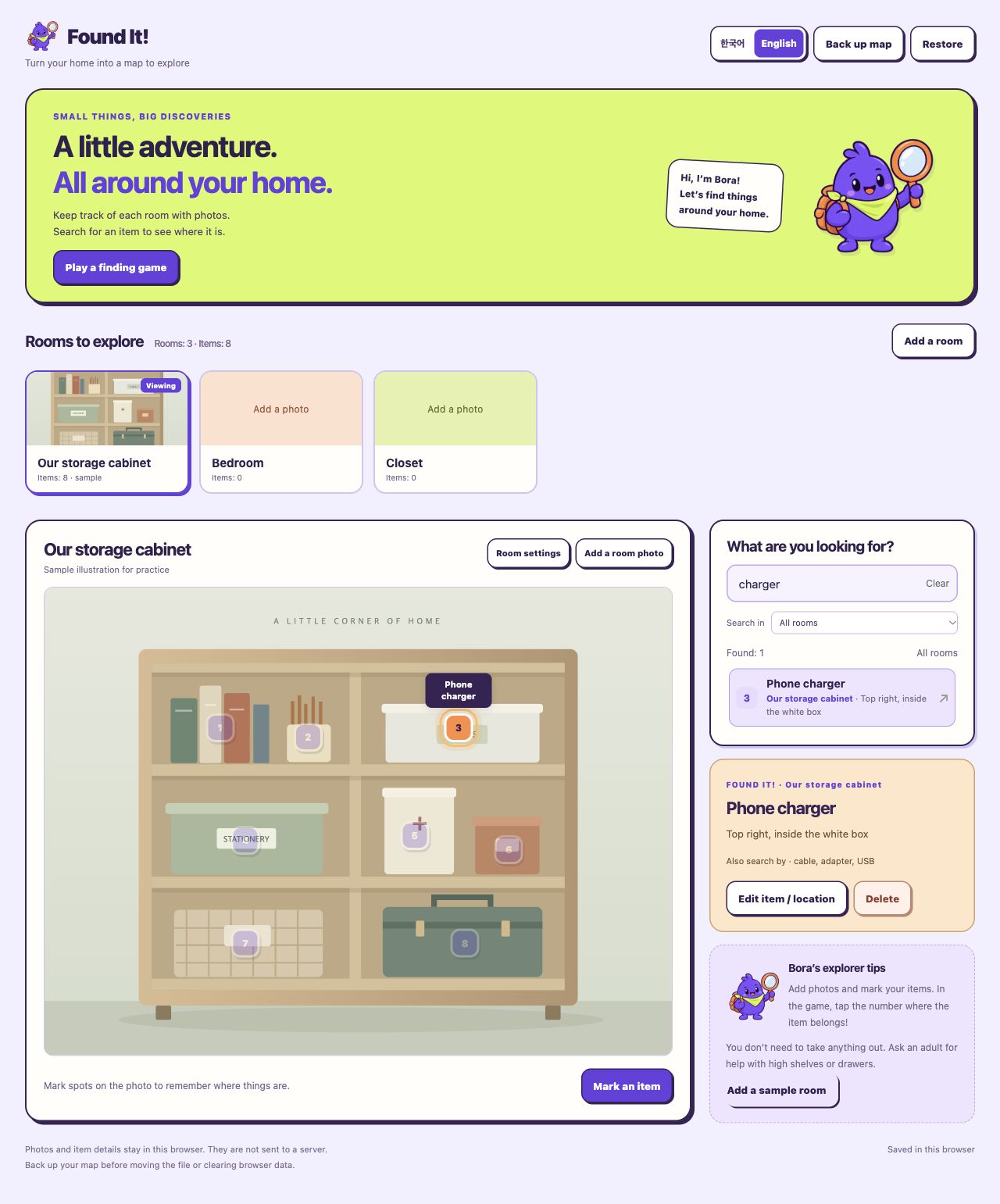
After the changes: brighter colors, a character, room cards, and a search across rooms. Bedroom and Closet are still waiting for photos. This and the next screenshot come from the English app.
Each room could now have its own photo. Searching across the home and selecting a result would take me to the room where that item was stored.
Looking back, I’d asked for two kinds of changes at once: a different look, and a way to add more rooms. Next time I ask for changes, I can first work out whether I’m unhappy with how something looks or whether it’s missing something I want to do.
Adding a finding game, too
The idea of children using the tool led to a game for finding the saved items.
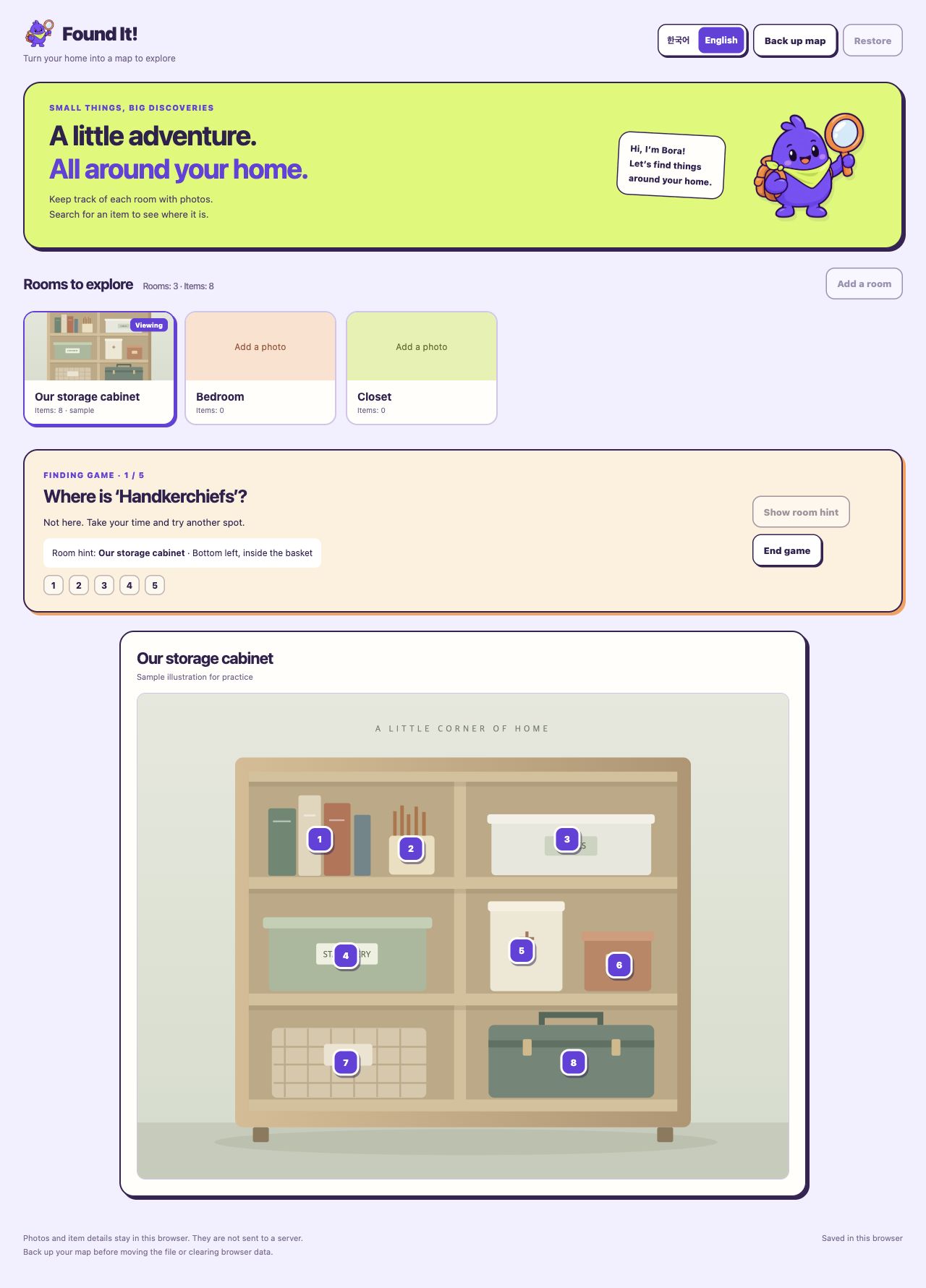
Tap the numbered spot where the item belongs. If you get it wrong, try again. A hint shows the room and location note.
The photos and names stay the same. Instead of me searching, the map asks me where the batteries are. A round has up to five items and no time limit.
I checked finding an item, viewing a hint, and completing a round. Whether a child would actually enjoy it is still an open question. Clicking through it on my own can’t tell me that.
Saving and moving the map
The item-map HTML file is here to try. It starts with a photo and a few items. Different photos and labels could make it useful for classroom cubbies or shared supplies at work, too.
Adding photos also meant I needed to understand where they were saved. Photos and item details stay in the browser I use. Taking the HTML file to another device won’t bring the saved map with it. For that, I need Back up map as well.
The screenshots in this post use sample material. If I share a screen showing a real home photo, I’ll need to check for addresses, faces, or anything else caught in the picture.
This time, I asked AI for a tool I could put my own information into and search. Reading the first request again, I can see it covered what goes in, what I do, and what I want to see. That seems like enough to start with next time.
Of course, moving an item means updating the map. AI can build the tool, but it still doesn’t know where I just left the charger.
The prompts are translated from Korean. The second is a summary of the original request, as noted above.